Settings
Manage categories and dependencies. (Changes are auto-saved)
Stats
Visual overview of your trading performance.
Total Trades
Win Rate
Profit Factor
Execution Growth
Overall Win/Loss Ratio
Directional Bias
Performance by day
Top 5 setup effectiveness
Top 5 invalidation losses
Top 5 Psychology
Confluence Amount vs Win Rate
Performance by symbol
Market Condition Analysis
Location Effectiveness Heatmap
Help & FAQ
Everything you need to know about using the VWAP Wave System Journal.
Yes, your data is 100% safe and private. This app runs entirely in your browser and does not use any cloud databases or external servers. All your trades, settings, and screenshots are saved directly to the local folder you selected on your own hard drive. Nobody else has access to it.
This is a strict security feature built into web browsers (like Google Chrome). Browsers don't allow websites to automatically read/write to your local folders in the background without your explicit permission. When you close the app or restart your browser, the permission resets. You simply need to click "Reconnect Folder" to grant access again. Moved your journal to another place? Choose "Use a different folder" and select it.
Go to the Settings tab in the sidebar.
- Add an item: Type in the input field of a category and press
EnterorComma (,). - Edit an item: Click on the text of any pill to edit it. Press Enter when done.
- Delete an item: Click the cross (×) on a pill.
- Reorder items: Click and hold a pill to drag it. You can also reorder entire categories by dragging the handle.
All changes are saved instantly.
Navigate to the Dashboard and ensure the correct date is selected. Simply click on the trade card you want to edit. The modal will open with your data populated. Make your changes and hit Save Trade. To delete it entirely, click the red Delete button in the bottom left corner.
When adding or editing a trade, you have four ways to add an image:
- Click the dashed upload box to select an image file from your computer.
- Drag and drop an image file directly into the dashed box.
- Copy an image (e.g., using Snipping Tool / Lightshot) and simply press
Ctrl+V(Windows) orCmd+V(Mac) while the trade window is open. - Use Auto-Capture to grab your chart with one click (see below).
Images are automatically saved in the /img subfolder inside your main Journal folder.
Auto-Capture takes the screenshot for you from a window you share once per session, such as TradingView or your trading platform.
- Go to Settings → Screenshot and click Connect Window.
- In your browser's share dialog, pick the window of your charting app. A live preview appears in Settings.
- When you add or edit a trade, click Auto-Capture next to the Screenshot title. What that window shows at that moment is added to the trade.
- The connection lasts as long as the app is open. After a reload or restart, click Connect window for auto-screenshots at the top of the dashboard to reconnect.
- Keep the shared window open. A minimized window can't be captured.
- To stop, click Disconnect Window in Settings, or stop sharing from your browser's sharing bar.
- Screenshots are taken on your own computer and saved in your Journal folder. Nothing is uploaded.
With custom charts you turn your own questions into a chart, for example "How does Return to Value do in a balanced market?" or "Which location works best when I'm not trading with FOMO?"
- Go to Settings → Chart and click + Add Custom Chart.
- Pick a chart type: a Single number for one result, a Bar chart to compare across one field, or a Heatmap to compare two fields at once.
- Choose what to show: Win rate puts your best results first, Loss rate puts your weakest first so you see what to work on, and Number of trades shows how often something happens. For a bar chart, pick what to split by. For a heatmap, pick the rows and the columns.
- Under Which trades, click + Add filter to narrow it down. Choose is or is not and tap one or more values. All filters must match; within one filter, any selected value counts.
- Set the minimum trades and the width, check the live Preview and click Save Chart.
- Your charts appear on the Stats page and follow the same year, month, week and day filters as the other charts.
- You can also add a chart straight from the Stats page with Add Custom Chart, next to the filters.
- To change a chart, click Edit on the chart itself or in Settings → Chart. Deleting is done from the same window. Drag charts on the Stats page or in Settings → Chart to change the order, and disable the ones you don't need in Settings.
- In a heatmap, green cells show the win rate and red cells show the loss rate as a negative number. Faded cells have fewer trades than your minimum, so take them with a grain of salt. In a bar chart, values below your minimum are left out.
- A trade with several locations, evidences, invalidations or psychology tags counts for each of them.
- If you turn off a section such as Evidence or Psychology, charts that use it are hidden until you turn it back on.
- A starter chart, Win rate by Symbol and Setup, is added for you once. You can edit or delete it like any other chart.
Go to the Stats page and check the filters at the top. The charts only show data for the selected Year, Month, Week, and Day. If you have no trades in that period, the charts will be empty. Change the filters back to "All Months" to see your overall performance.
No. Because this application relies on the secure File System Access API to save files locally, it requires a desktop browser. Mobile browsers (like Safari on iOS and Chrome on Android) do not currently support this feature.
Because all data lives exclusively on your computer, backing up is extremely simple. Just copy your entire "VWAP Journal" folder (containing settings.json, vwap-journal.json, and your /img folder) to a USB drive, Google Drive, Dropbox, or iCloud.
If you want to start with a clean slate (removing all trades), simply go to your local folder on your computer. Delete the vwap-journal.json file and the img folder. Leave your settings.json intact. When you refresh the app, it will automatically generate a fresh, empty journal for you!
No worries! First, delete the settings.json file from your local folder on your computer. Then, click the button below to download a fresh copy of the default settings. Move this new file into your folder and refresh the app.
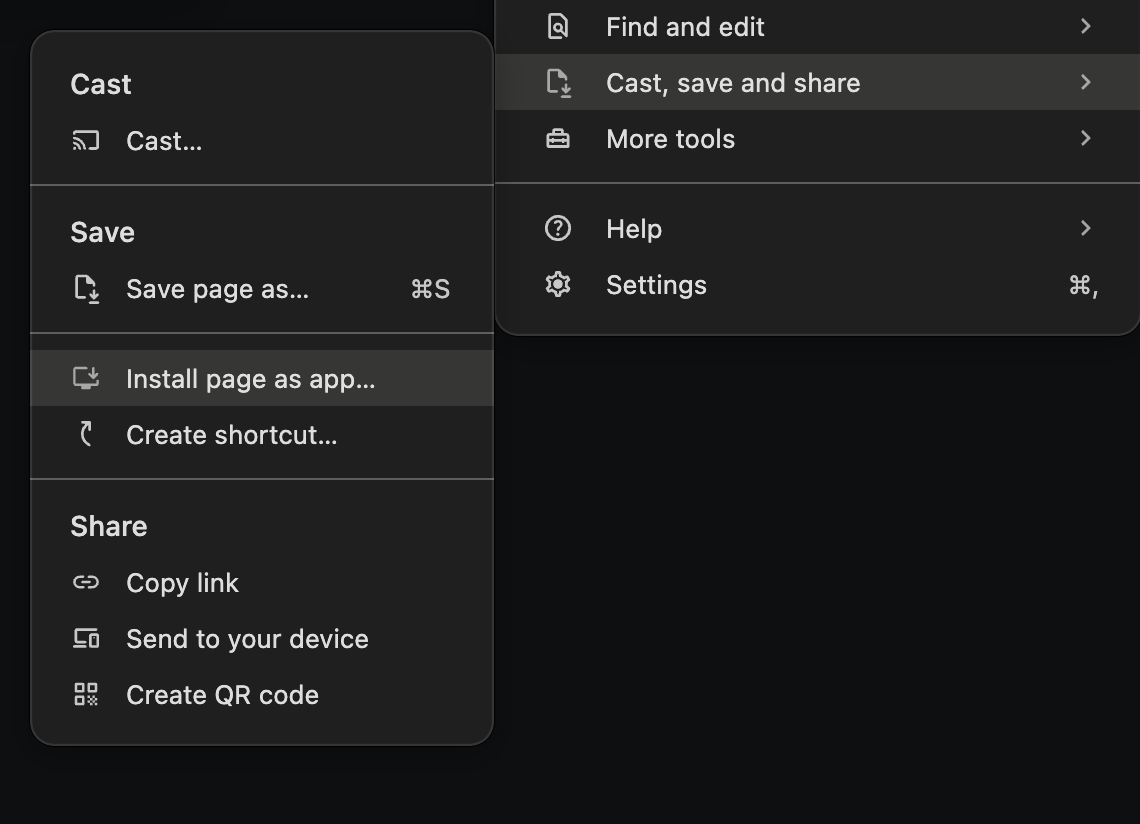
If you are using Google Chrome, you can easily install this journal as a standalone desktop application:
- Click the Chrome menu (the three dots) in the top right corner.
- Select Cast, save and share.
- Click Install page as app...
Use these hotkeys to navigate the app faster like a power user.
| Action | Mac | Windows |
|---|---|---|
| Global | ||
| New Trade | Option + N | Alt + N |
| Toggle Dark/Light Mode | Option + M | Alt + M |
| Dashboard (When not typing) | ||
| Jump to Today | Option + T | Alt + T |
| Previous / Next Day | Arrow Left / Right | Arrow Left / Right |
| Previous / Next Week | Shift + Arrow Left/Right | Shift + Arrow Left/Right |
| Trade Form (When open) | ||
| Save Trade | Option + S | Alt + S |
| Cancel | Option + C | Alt + C |
| Delete Trade | Option + Backspace | Alt + Backspace |